
The vault
By default, Aquilifer stores your provider API keys as plain text in the browser's local storage: sandboxed so no website can ever read it, but not encrypted on disk. The vault is an optional upgrade on top of that: a password-protected encryption layer for your stored keys.
Read this before turning it on
The vault only encrypts your API keys. It does not encrypt your history, your connected-site list, or anything else Aquilifer stores. If you're picturing "the vault protects my data," it's narrower than that: it protects the credential, not what you've asked an LLM.
There is no password recovery. If you forget your vault password, the API keys it encrypted are permanently unreadable. There's no reset link, no backend to recover it from: it's a local encryption key derived from your password, and nobody (including the Aquilifer developers) has a copy of it. If that happens, you'd delete the affected providers and re-add them with a fresh key from your provider's dashboard. This is an accepted tradeoff, not an oversight: an API key is cheap to rotate, so losing one to a forgotten password is a minor inconvenience, not a disaster.
Why you'd turn it on
The main scenario the vault protects against is a shared device: a family computer, a shared work machine, anything where more than one person uses the same browser profile. Without the vault, once a site is connected, anyone using that profile can trigger requests against your API key with no further prompt (that's the normal, intended "connect once, then silent" behavior; see Connecting a site). With the vault on, the first request after the browser starts pauses for a password unlock; after that, it stays unlocked for the rest of that browser session, so it's not asking constantly.
If you're the only person who ever uses your browser, the vault's main benefit doesn't really apply to you: plain storage is already reasonably safe, since a leaked API key is something you can revoke and rotate, unlike, say, a crypto wallet's private key.
Setting it up
From the Security tab in settings:
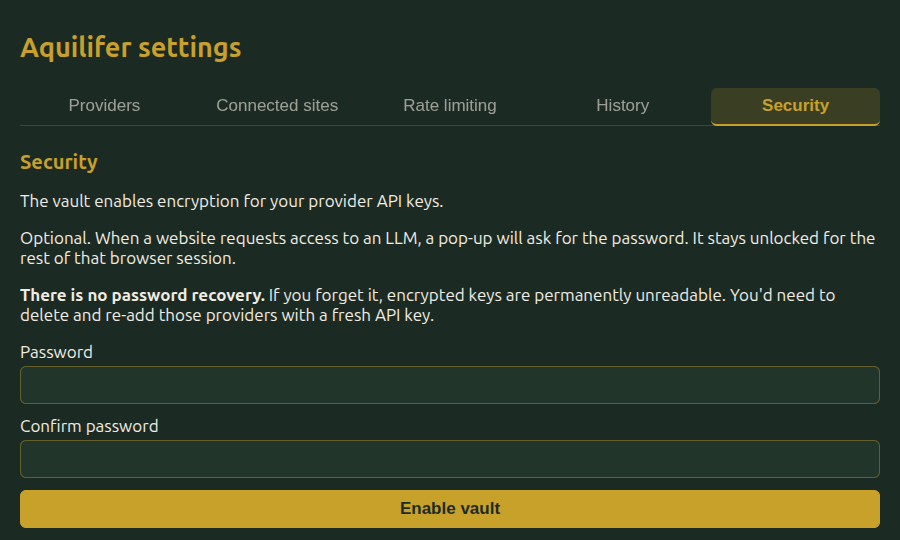
- Choose a password (at least 8 characters) and confirm it.
- Click Enable vault. Every API key you've already saved gets re-encrypted under it immediately; you don't need to re-add your providers.
From then on, adding a new provider requires the vault to be unlocked (the settings page will tell you if it's locked).
Locking and unlocking
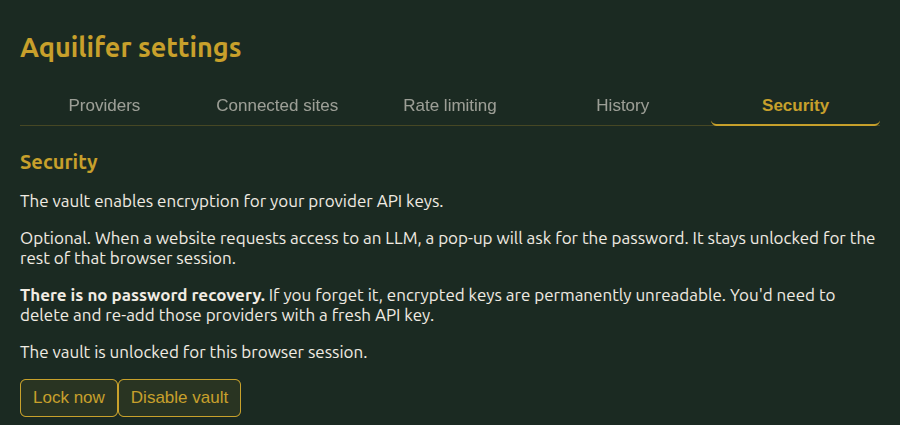
- Lock now, in the Security tab, locks it immediately, useful right after using a shared computer.
- It also locks automatically whenever the browser fully closes.
- When something needs a key and the vault is locked, Aquilifer opens a small unlock prompt automatically; enter your password there, and whatever was waiting continues.
Turning it off
Disable vault, also in the Security tab, decrypts everything back to plain storage. You'll need the vault unlocked to do this, since decrypting back requires the key.